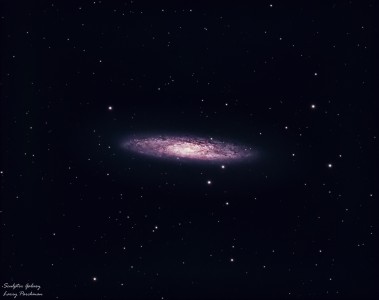
Image of the day

Captured by
Lawrence Parchman

Sculptor Galaxy (NGC 253)

My Account

New to Astromart?

Register an account...

Need Help?

Photoshop question

Started by maurice clark, 05/03/2007 05:13PM
Posted 05/03/2007 05:13PM Opening Post
Hi all,

I have just finished re-installing Photoshop on a new computer and I am having a problem with grayscale images. Instead of displaying them as simple grayscale, photoshop insists on displaying them with a brown tint. I think they call it sepia toned.

Anybody know how to stop this and go back to simple grayscale?

Thanks in advance.

Maurice

* Teach a man to fish and you feed him for a day.
* Teach a man to use the internet and he won't bother you for weeks.
Posted 05/03/2007 06:46PM | Edited 05/03/2007 06:49PM #1
Press Ctrl-Alt-Shift right after clicking the icon to open Photoshop to reset all preferences, Option-Command-Shift on a Mac. I hope that helps.
Posted 05/04/2007 02:23PM #2
I've gotta run out this morning but wanted to add two more checks for you before I left.

I work on a Mac so things might be a little different but try checking:

1. Advanced color settings. Do you have your monitor desaturated check box checked? Or some unusual color profile selected?

2. This is more likely. Under your "View" pull down you will have a "Proof Setup". make sure it is set up to a standard RGB or CMYK setting. You may have mistakenly selected a pantone, spot or custom color space.

Jerry
Posted 05/04/2007 03:30PM #3
Hi Maurice,
I'm pretty sure that this isn't the source of your problem, but under Color Settings/Color Management Policies/ RGB: try choosing Preserve Embedded Profiles.

dan kowall