Image of the day

Captured by
John Roach

Enhanced Uranus showing Polar Cap and possible Aurora

My Account

New to Astromart?

Register an account...

Need Help?

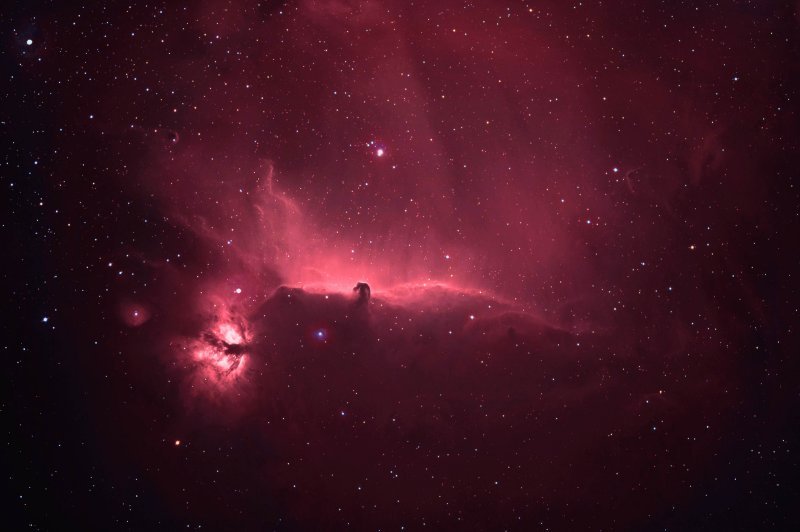
Wide Field Color Horsehead

Started by Rob Mackie, 01/28/2009 08:50PM
Posted 01/28/2009 08:50PM Opening Post
I added color recently to an HA Horsehead I did over 1 year ago.

Details:Camera: SBIG STL 11000,Scope: Tak FSQ 106ED
5 hrs HA (20x15min), 40 min Green and blue (8 x 5min)

A full size version is at http://www.pbase.com/steelnavy/image/108542689/original

Color balance still isn't right, too much salmon. Anyway, have at it.

Rob Mackie
Attached Image:

Rob Mackie's attachment for post 45412
Posted 01/29/2009 03:48PM #1
Hi Rob,

Nice image, but you may want to cjheck the subs: looking at the full size version there seem to be some guiding problems that show as a sort of bar with 2 points, one at each end. Maybe it is only one or 2 sub-exposure that have this problme and, eliminating them could benefit the whole image.

Just a suggestion wink

Luca

www.amun-ra.org
Solar Imaging Website
Posted 01/29/2009 11:02PM #2
Sweet shot Rob! I also checked out the full version and it really is nice. It lloks like you have a nice combination of equipment there.
Clear Skies,
Tyler

"The expression of the beautiful is in direct ratio to the power of perception acquired by the artist." (Gustave Courbet)
Posted 01/30/2009 04:23AM #3
Rob,

It's looking good. Adding Ha to RGB can give me fits sometimes when the balance just won't cooperate. You sure have a lot of Ha data there,maybe some more color data to go with it would make it easier to get the color balance where you want it?

Jason

Posted 01/30/2009 04:32AM #4
Nice shot!

Regards


LouieĀ  8)

www.atalas.net
Posted 01/30/2009 03:15PM | Edited 01/30/2009 03:26PM #5
Nice, but the color combine is wrong. Don't use Ha as red; it will overwelm everything -- as seen here. Instead, shoot your usual RGB frames and combine them into a RGB image. Combine your Ha frames into a Ha master. Align the Ha master and the RGB image. Take them both into Photoshop and activate the Ha image. Select all/copy. Then activate the RGB image. Open your channels pallete and select split channels. This will give you R,G,B grey scale frames. Activate the Red frame. Paste. In the Layers palette change the blend mode to lighten -- leave the opacity at 100%. Flatten. Next, activate the Blue frame. Paste. Again change the blend mode to Lighten but this time reduce the opacity to about 15-20% (this simulate H-beta). Flatten. Go back to your channels palette and select combine. Choose the RGB option and make sure your R,G,B frames are seleted properly. Click OK.

You now have a HaRGB image with all the detail of the Ha, but proper color fidelity of the RGB. This is the "standard" way to combine Ha into a RGB image.

Chris Schur gave a presentation regarding this technique at AIC in 2006. Click on the link then download his Powerpoint presentation "Getting the Right Color"
http://www.aicccd.com/archive/2006_presentation_archive.html

Tom

Starsearch Observatory
Lat 42N 47' 00" Long 112W 10' 47"
Elev 1752m
www.tvdavisastropics.com
Posted 01/30/2009 04:04PM #6
Hey Rob,

It reminds me a lot of my effort at this a few years back. Though in my case it was Ha/OIII/Blue (or something like that), so mine was a deliberate pseudo-real-but-not-really color shot. Dan's suggestion for blending in the H-alpha data into your RGB is definitely one to look at.

Eric